
Firefox has tons of extensions that enhance the functionality of the browser. You can saves your time while you are surfing the net. The 10 Firefox Add-ons listed below is my recommendations to help you saves your time that will keep you focused on your time management.
Subscribe to The-Online-Quest for even more Firefox Add-ons list list.
1) Read It Later
Read It Later allows you to save pages of interest to read later. It eliminates cluttering of bookmarks with sites that are merely of a one-time interest.
2) Hyperwords
With Hyperwords you can select any word on any web page and choose from powerful commands, references, search, translation (right in the page itself, not in a new window), conversions, email, alter the page view and much more.
3) DownThemAll
DownThemAll is all you can desire from a download manager: it features an advanced accelerator that increases speed up to 400% and it allows you to pause and resume downloads at any time.
4) Clipmarks
Instead of copying and pasting links, Clipmarks is like adding a pair of scissors to your browser, letting you capture exactly what you want others to see (text, images or video). Your clips are saved on clipmarks.com and can easily be syndicated to FriendFeed, Twitter, Facebook or other sites.
5) Gmail Notifier
Allows you to monitor multiple Gmail accounts right inside your browser's UI. Checking multiple accounts as well as Gmail Hosted accounts.
6) Nuke
Remove unwanted text/image block before printing a page. Allow hiding of almost anything via context menu 'Remove Object' or 'Remove Selection' with possibility of multiple undo of 'Remove Object'. You can also make a selection and chose "Remove everything else" to clear the page and only leave the selected text.
7) Stealther
If there are times you want to surf the web without leaving a trace in your local computer, then this is the right extension for you.
8) DejaClick
Got a package or an order you want to track? Have a favorite category at an online auction site? Tired of going through the steps to log into your e-mail? Use DéjàClick by AlertSite to automatically record and replay your most common browsing activities.
9) Gspace
This extension allows you to use your Gmail Space (4.1 GB and growing) for file storage. It acts as an online drive, so you can upload files from your hard drive and access them from every Internet capable system.
10) Screengrab
Screengrab saves entire webpages as images. It will save what you can see in the window, the entire page, just a selection, a particular frame, basically it saves webpages as images.
Don't forget to Subscribe to The-Online-Quest via RSS or you can receive daily updates via Email.
Signing off...
11.28.2008
List of Firefox Add-ons to help you Saves Time (Episode #3)


11.12.2008
Some Firefox Add-ons that REALLY make your Browsing Experience Better
All listed Firefox Add-ons below that i found are to make your Browsing Experience Better. Such as find stuff you need faster on Google, Yahoo,MSN or learn words in any language while you surf the web.
Some Firefox Add-ons that REALLY make your Browsing Experience Better
1) Surf Canyon - Search Engine Assistant
Surf Canyon enables you to uncover relevant information that's buried in the search results on Google, Yahoo!, Microsoft Live Search or Craigslist. Personalize your search in real-time.
2) Codetch 0.4.1rc1
Codetch lets you edit your documents right next to your web pages as you surf. Get the feel of Dreamweaver in a Firefox extension.
3) WordLearner
WordLearner toolbar allows you to learn words in any language while you surf the web.
4) Video DownloadHelper 3.4
Video DownloadHelper lets you to download and convert Web videos from hundreds of YouTube-like sites.
5) FoxyTunes 3.0.4
FoxyTunes lets you control almost any media player and find lyrics, covers, videos, bios and much more with a click right from your browser.
6) PhProxy - InBasic 3.0.3J
PhProxy lets you to achieve anonymity in surfing, using web-based proxy.
7) Secure Login 0.9.3
Secure Login is a login extension for Mozilla Firefox integrated password manager. Its main feature is similar to Opera's (the browser) Wand login.
8) Glubble for Families 2.0.1.1
Glubble turns the Internet into a fun, educational, secure and social experience for the entire family. With this free add-on for Firefox your children can explore, play and enjoy thousands of fun games, color pages, interactive exercises, audio books and puzzles.


11.02.2008
Customize and Redesign Popular Websites with your own Style
Stylish is a Firefox, Thunderbird, Flock, SeaMonkey, Mozilla Suite, and Songbird extension that allows easy management of user styles. User styles empower your browsing experience by letting you fix ugly sites, customize the look of your browser or mail client, or just have fun.
Installing scripts
Before you customize the look of your browser, you need to install the extension first. Click here to install.
Go to userstyles.org, search for script, load into the Stylish extension where you can preview and save it.
Take a look at 5 popular websites that you can customize.
1) Youtube - Stripped for your viewing pleasure
2) Gmail - Gmail Redesigned
Gmail Redesigned is a CSS Stylesheet for Google's Gmail service. It is a single file which is loaded locally overtop of the Gmail website to change its look and feel.
3) Facebook - Dark Yellow 2008
This is a Black and yellow version of Facebook.
4) Google Web Search - Dark Gray Redesign
Dark gray/black color scheme for Google's web search page.
5) Wikipedia - Dark gray with nicer search box
10.21.2008
List of Firefox Add-ons to help you Saves Time (Episode #1)
Firefox has tons of extensions that enhance the functionality of the browser. You can saves your time while you are surfing the net. The 11 Firefox Add-ons listed below is my recommendations to help you saves your time that will keep you focused on your time management.
Subscribe to The-Online-Quest for even more Cool Firefox Add-ons list.
1. ObamaFox
Instant access to Barack Obama and US Election '08 news, blogs, and campaign updates in your browser. Just click the small Obama icon in the bottom right corner of your browser and get the latest Obama and Election '08 news from your favorite news sources. Choose from 18 sources, including the Obama HQ Blog, Google News, CNN, New York Times, Eyes On Obama, Digg, and Twitter. You will also get major campaign updates and action alerts automatically in your browser.
Install ObamaFox
2. URL Fixer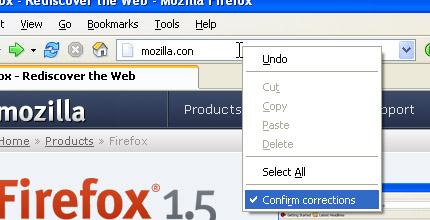
URL Fixer corrects typos in URLs that you enter in the address bar. For example, if you type google.con, it will correct it to google.com (asking first, if you enable confirmation).
It will correct common misspellings of .com, .net, .org, .edu, .gov, .mil, and all other mainstream TLDs, as well as the protocol (http:, https:).
Install URL Fixer
3. Adsense Notifier
Adsense Notifier displays your Adsense earnings on your Firefox status bar. It allows you to easily see your earnings at a glance instead of logging into the Adsense website multiple times a day.
Install Adsense Notifier
4. ForecastFox
Forecastfox is an extension that brings international weather to your Firefox web browser. You can use your US zip code or you can easily find your town or city by using the built in search tool. It is unobtrusive and lightweight, yet can be customized to display nearly as much data as the leading desktop weather programs.
Install Forecastfox
5. Paste and Go 3
Paste and Go 3 is a Firefox extension that gives you similar functionality in Firefox. It will save you time every day, just copy the link and paste and go immediately.
Install Paste and Go 3
6. AutoCopy
Do you like the content area context menu item? Autocopy is the time saving way of cutting and pasting text from within Firefox, Mozilla, or Thunderbird. Then try the Autocopy Context Menu. Select some text and up pop ups the Autocopy Context Menu.
Install AutoCopy
7. ColorZilla
With ColorZilla you can get the color without having to guess or play around with an image editor to try to match the color, quickly adjust this color and paste it into another program. You can Zoom the page you are viewing and measure distances between any two points on the page. This is a good add-on if you are trying to build your own website and trying to blend the colors together.
Install ColorZilla
8. Clear Cache Button
Adds a clear cache toolbar button. After installing the extension, find the clear cache button in the toolbar customization panel.
Install Clear Cache Button
9. FEBE
FEBE allows you to quickly and easily backup your Firefox extensions. In fact, it goes beyondFEBE license plate just backing up -- It will actually rebuild your extensions individually into installable .xpi files. Now you can easily synchronize your office and home browsers. FEBE backs up and restores your extensions, themes, and (optionally) your bookmarks, preferences, cookies.
Install FEBE
10. TinyUrl Creator
Easy shrink any long URL or link in the page to something you can email or Twitter using the TinyUrl service with a single click in your browser.
Install TinyUrl Creator
11. Clipboard-Save-As
This extension is useful when you have an URL in your clipboard pointing to a file (for example, a movie clip) you want to save to your hard drive. Many times, just pasting the URL in the address bar will lead to Firefox opening it instead of giving you the option to save it. With Clipboard-Save-As, an option is added to the Tools menu that allows you to save the file to your hard drive. Just make sure the URL to the file is in your clipboard and then select Save File from Clipboard.
Install Clipboard-Save-As
12. SwitchProxy Tool
SwitchProxy lets you manage and switch between multiple proxy configurations quickly and easily. You can also use it as an anonymizer to protect your computer from prying eyes.
Install SwitchProxy Tool
Subscribe to The-Online-Quest for even more Cool Firefox Add-ons list.


Great Firefox Keyboard Shortcuts List you should know (Win/Mac/Linux)
A keyboard short cut is a key (or combination of keys) that performs a function within a software program I have come across some excellent keyboard shortcuts for Firefox. This is a
Note:Some key uses the same shortcut for (Win/Mac/Linux)
List of shortcut keys for (Windows)Shortcut Command Ctrl+D Add Bookmark Backspace or Alt+<- Back Ctrl+B or Ctrl+I Bookmarks F7 Caret Browsing Ctrl+W or Ctrl+F4 Close Tab Ctrl+Shft+W or Alt+F4 Close Window Ctrl+Enter Complete .com Address 2 Shft+Enter Complete .net Address 2 Ctrl+Shft+Enter Complete .org Address 2 Ctrl+C Copy Ctrl+X Cut Ctrl+- Decrease Text Size Del Delete Shft+Del Delete Individual Form Auto-Complete Entry Ctrl+Shft+I DOM Inspector Ctrl+J Downloads Ctrl+G F3 Find Again ' Find As You Type Link / Find As You Type Text Ctrl+Shft+G Shft+F3 Find Previous Ctrl+F Find in This Page Shft+Backspace or Alt+-> Forward Down Go Down One Line Up Go Up One Line PageDown Go Down One Page PageUp Go Up One Page End Go to Bottom of Page Home Go to Top of Page F11 Full Screen F1 Help Ctrl+H History Alt+Home Home Page Ctrl++ Increase Text Size F6 Move to Next Frame Shft+F6 Move to Previous Frame Ctrl+M New Mail Message 3 Ctrl+T New Tab Ctrl+Tab or Ctrl+PageDown Next Tab Ctrl+N New Window Ctrl+O Open File Enter Open Link Ctrl+Enter Open Link in New Tab Shft+Enter Open Link in New Window Alt+Enter Open Address in New Tab 2 Ctrl+I Page Info Ctrl+U Page Source Ctrl+V Paste Ctrl+Shft+Tab or Ctrl+PageUp Previous Tab Ctrl+P Print Ctrl+Shft+Z or Ctrl+Y Redo F5 or Ctrl+R Reload Ctrl+F5 or Ctrl+Shft+R Reload (override cache) Ctrl+0 Restore Text Size Ctrl+S Save Page As Alt+Enter Save Link Target As Ctrl+A Select All Ctrl+L or Alt+D Select Location Bar Down Select Next Auto-Complete entry in text field Up Select Previous Auto-Complete entry in text field Ctrl+Down Select Next Search Engine in Search Bar Ctrl+Up Select Previous Search Engine in Search Bar Ctrl+[1 to 9] Select Tab [1 to 9] Esc Stop Spacebar Toggle Checkbox Ctrl+Z Undo Ctrl+K Web Search
List of shortcut keys for (Mac)Shortcut Command Cmd+D Add Bookmark Cmd+[ or Cmd+<- Mac Back Cmd+B Bookmarks F7 Caret Browsing Cmd+W or Cmd+F4 Close Tab Cmd+Shft+W or Optn+F4 Close Window Cmd+Return Complete .com Address 2 Shft+Return Complete .net Address 2 Cmd+Shft+Return Complete .org Address 2 Cmd+C Copy Cmd+X Cut Cmd+- Decrease Text Size Del Delete Shft+Del Delete Individual Form Auto-Complete Entry Cmd+J Downloads Cmd+G or F3 Find Again ' Find As You Type Link / Find As You Type Text Cmd+Shft+G or Shft+F3 Find Previous Cmd+F Find in This Page Shft+Backspace or Cmd+] or Cmd+-> Forward Down Go Down One Line Up Go Up One Line PageDown Go Down One Page PageUp Go Up One Page End Go to Bottom of Page Home Go to Top of Page Cmd+H History Optn+Home Home Page Cmd++ Increase Text Size F6 Move to Next Frame Shft+F6 Move to Previous Frame Cmd+M New Mail Message 3 Cmd+T New Tab Cmd+Opt+Tab or Cmd+PageDown Next Tab Cmd+N New Window Cmd+O Open File Return Open Link Cmd+Return Open Link in New Tab Shft+Return Open Link in New Window Optn+Return Open Address in New Tab 2 Cmd+I Page Info Cmd+U Page Source Cmd+V Paste Cmd+Shft+Tab or Cmd+PageUp Previous Tab Cmd+P Print Cmd+Shft+Z Redo F5 or Cmd+R Reload Cmd+F5 or Cmd+Shft+R Reload (override cache) Cmd+0 Restore Text Size Cmd+S Save Page As Optn+Return Save Link Target As Cmd+A Select All Cmd+L Select Location Bar Down Select Next Auto-Complete entry in text field Up Select Previous Auto-Complete entry in text field Cmd+Down Select Next Search Engine in Search Bar Cmd+Up Select Previous Search Engine in Search Bar Cmd+[1 to 9] Select Tab [1 to 9] Esc Stop Spacebar Toggle Checkbox Cmd+Z Undo Cmd+K Web Search
List of shortcut keys for (Linux)Shortcut Command Ctrl+D Add Bookmark Backspace or Alt+<- Back Ctrl+B or Ctrl+I Bookmarks F7 Caret Browsing Ctrl+W or Ctrl+F4 Close Tab Ctrl+Shft+W or Alt+F4 Close Window Ctrl+Enter Complete .com Address 2 Shft+Enter Complete .net Address 2 Ctrl+Shft+Enter Complete .org Address 2 Ctrl+C Copy Ctrl+X Cut Ctrl+- Decrease Text Size Del Delete Shft+Del Delete Individual Form Auto-Complete Entry Ctrl+Shft+I DOM Inspector Ctrl+J Downloads Ctrl+G F3 Find Again ' Find As You Type Link / Find As You Type Text Ctrl+Shft+G Shft+F3 Find Previous Ctrl+F Find in This Page Shft+Backspace or Alt+-> Forward Down Go Down One Line Up Go Up One Line PageDown Go Down One Page PageUp Go Up One Page End Go to Bottom of Page Home Go to Top of Page F11 Full Screen F1 Help Ctrl+H History Alt+Home Home Page Ctrl++ Increase Text Size F6 Move to Next Frame Shft+F6 Move to Previous Frame Ctrl+M New Mail Message 3 Ctrl+T New Tab Ctrl+Tab or Ctrl+PageDown Next Tab Ctrl+N New Window Ctrl+O Open File Enter Open Link Ctrl+Enter Open Link in New Tab Shft+Enter Open Link in New Window Alt+Enter Open Address in New Tab 2 Ctrl+I Page Info Ctrl+U Page Source Ctrl+V Paste Ctrl+Shft+Tab or Ctrl+PageUp Previous Tab Ctrl+P Print Ctrl+Shft+Z or Ctrl+Y Redo F5 or Ctrl+R Reload Ctrl+F5 or Ctrl+Shft+R Reload (override cache) Ctrl+0 Restore Text Size Ctrl+S Save Page As Alt+Enter Save Link Target As Ctrl+A Select All Ctrl+L or Alt+D Select Location Bar Down Select Next Auto-Complete entry in text field Up Select Previous Auto-Complete entry in text field Ctrl+Down Select Next Search Engine in Search Bar Ctrl+Up Select Previous Search Engine in Search Bar Ctrl+[1 to 9] Select Tab [1 to 9] Esc Stop Spacebar Toggle Checkbox Ctrl+Z Undo Ctrl+K Web Search
Note:Some key uses the same shortcut for (Win/Mac/Linux)
10.15.2008
Firefox Add-on Lets you Share, Bookmark and Submit articles quickly


Shareaholic currently supports posting to: digg, delicious, facebook, foxiewire, friendfeed, google bookmarks, google reader, healthranker, kaboodle, magnolia, mixx, myspace, pownce, reddit, simpy, soup.io, stumbleupon, streakr, truemors, tumblr, twine, twitter, yahoo! buzz, ycombinator, bzzster, etc.
Shareaholic also lets you quickly evaluate web page popularity by telling you the number of times the web page you're on has been dugg or saved to del.icio.us.
It will show you if the item is dugg, how many diggs, and number of comments, clicking on it will either submit a new item (if it is new) or bring you to the page that already exists.
Works with both Windows and Mac.
Download
https://addons.mozilla.org/en-US/firefox/addon/5457
6.25.2008
My Top 5 Firefox 3 Themes
Firefox 3 is finally here and some add-ons are not compatible with Firefox 3. And for those of you who are tired and boring of default plain gray theme of Firefox , there are a few things you can do to change the looks of your Firefox browser, making it more interesting.I've found some compatible themes that you could use.
Here are 
Walnut - Why not give your Web browser a wood grain finish to feel like you widdled it yourself sitting out on the porch in your rocking chair.
Qute - Not a full theme, but instead an icon set of shiny, candy looking icons to switch out with the defaults in Firefox 3.
PitchDark - A dark, minimalistic theme with maximum screen real-estate and readability in mind.
Pink-Bee - Written in French, it’s still hard to pass up on this one if you’re looking for a pink theme.
Newgrounds Classic - Based off of the popular Newgrounds site, this theme is a mixture of black with very shiny yellow, complete with some animation.
6.21.2008
A Must Have Firefox Add-ons for Blogging
 Do you like to blog? Whether you are a professional or a newbie blogger. You are always to find new ideas and creativity to blog about. If you use firefox, i have a good news for people who love to blog.These firefox add-ons saves you time when you blog and you can post your article directly from Firefox
Here are
DashBlog 1.5 DashBlog lets you quickly collect videos, images, text/quotes, songs and screen-captures from any web page and publish them to your blog (word press, blogger/blogspot, tumblr) and/or twitter.
Works with: Firefox: 1.5 – 3.0.*
https://addons.mozilla.org/en-US/firefox/addon/7215
ScribeFire 2.2.7 ScribeFire is a full-featured blog editor that integrates with your browser and lets you easily post to your blog.
Works with: 2.0 – 3.0.*
https://addons.mozilla.org/en-US/firefox/addon/1730
MySpace Blog Editor 0.3 The MySpace Blog Editor allows you to post directly from within Firefox to your MySpace blog aswell as save notes, drag and drop formatted text from webpages, handle images and much more...
Works with: 1.0 – 3.0a1.
https://addons.mozilla.org/en-US/firefox/addon/3229
Deepest Sender 0.9.0 Deepest Sender is a client that will allow you to post to blogs from directly within Firefox. It is primarily a LiveJournal client, although it supports Blogger (GData) and WordPress (metaWeblog) too.
Works with: 3.0 – 3.0.*
https://addons.mozilla.org/en-US/firefox/addon/1811
WordPress Post 0.17 This extension lets you post the text you select in your browser directly to your WordPress blog.
Works with: 1.5 – 3.0.*
https://addons.mozilla.org/en-US/firefox/addon/4900
Transfer your old Firefox 2 Profile data to Firefox 3
 Everybody was very excited (myself included) when the day Firefox 3 was released. Firefox has already reached 14,613,666 downloads. With more than 15,000 improvements, Firefox 3 is faster, safer and smarter than before.
So i decided to visit this link and download Firefox 3 and uninstall Firefox 2 without thinking much.
After the installation process was complete, i started my daily blogging routine. I clicked my bookmark Tab and wanted to visit my favorite site but...
I think you all know what happen right?. My old bookmarks was gone, my extensions and ect. All my data was gone. So i am here to write a post on how
Ok, let's get started.
Transfer your old Firefox 2 data to Firefox 3
Before you do anything to Firefox 2, you must backup your old data first. Mozilla Firefox stores all your personal settings, such as bookmarks, passwords and extensions, in a profile folder, which is stored on your computer. To back up your profile, restore it, or move it to a new location or computer, all you have to do is move or copy the profile folder.
In order to back up or restore your data, you need to know where Firefox stores the profile folder.
On Windows Vista
1. Click the Windows Start button, and type %APPDATA%\Mozilla\Firefox\Profiles\ in the Start Search box near the bottom of the Start menu, without pressing Enter. A list of profiles will appear in the top left of the Start menu.
2. Click on any of the profiles (e.g. xxxxxxxx.default) to open it with Windows Explorer.
On Windows 2000 and XP
1. Click the Windows Start button, and select Run....
2. Type in %APPDATA%\Mozilla\Firefox\Profiles\ then click OK.
3. Windows Explorer opens a folder containing your profiles.
4. Double-click the profile folder you wish to open (e.g. the xxxxxxxx.default folder).
Note: For Windows Vista/XP/2000 the location path is %APPDATA%\Mozilla\Firefox\Profiles\xxxxxxxx.default\
After you locate your profile folder, you need to backup it.
Backing up your profile
Backing up your profile folder in Firefox is easy. Just follow these steps:
1. From the menu at the top of the Firefox window, select File and then select the Exit menu item.
2. Locate your profile folder, as explained above.
3. Right-click on your profile folder, and select Copy.
4. Right-click the backup location (e.g. a USB-stick or a blank CD-RW disc), and select Paste.
After you have backup your profile in Firefox 2, you can continue uninstalling Firefox 2 and install Firefox 3.
After you have install Firefox 3, before you can transfer all your old data to the new Firefox 3 profile, you need to create new profile..BUT before you create it, you need to start your profile manager.
Starting the Profile Manager
On Windows Vista
1. Open the Windows Start menu. In the Start Search box in the bottom left, type firefox.exe -ProfileManager and press ENTER.
On Windows 98, ME, 2000, and XP
1. Select the START menu in the Windows Taskbar. Then, select Run.
2. In the Run dialog, type firefox.exe -ProfileManager and click OK.
After you start your profile manager, now you can create your profile in Firefox 3.
Creating a profile
1. To start the Create Profile Wizard, click Create Profile... in the Profile Manager.
2. Click Next and enter the name of the profile. Use a profile name that is descriptive, such as your personal name. This name is not exposed on the Internet.
3. You can also choose where to store the profile, which is useful if you plan on exporting your data and settings to another computer or setup in the future. To choose its storage location on your system, click Choose Folder....
4. To create the new profile, click Finish.
Next step is how to transfer your old Firefox 2 profile data to Firefox 3 new Created Profile.
Transfer a profile backup to Firefox 3
1. From the menu at the top of the Firefox window, select File and then select the Exit menu item.
2. If your existing profile folder and profile backup folder have the same name, simply replace the existing profile folder with the profile backup, then start Firefox.
Important: The profile folder names must match exactly for this to work, including the random string of 8 characters. If the names do not match or if you are restoring a backup to a different location, follow the steps below.
If my help help won't work, please visit http://support.mozilla.com for more informations.


