
VistaMizer modifies your system files, so that when you reboot after installing VistaMizer, you won't even remember how your old desktop looked like. 
Features
· Vista-Look for Windows XP, MCE or Server 2003
· Modification of the own system files
· multilingual
· completely free choice for the modification files
· check the files for compatibility during the installation
· backup from the original system files
· re-modification of the system files after Windows Updates
· rebuilding of the original system files with un-installation
To Download go to http://www.softpedia.com
Showing posts with label XP. Show all posts
Showing posts with label XP. Show all posts
10.25.2008
Change the appearance of your Windows XP by giving it the Vista look!
6.02.2008
How To Disable Windows XP Security Alerts
Windows Security Alerts usually appeared when you disable either Virus Protection, Firewall or Automatic Updates.
In this example, I've turn off the Automatic Updates. And then you will get something like this :-
So how to disable or turn off this windows security alerts ?
Its simple. First of all, go to Control Panel > Security Center.
On the left bar, click on "Change the way Security Center alerts me"
Alert Settings windows will pop out.So just "uncheck" Automatic Updates and the balloon will disappear..
That's all.
Credits to Info On The Net
Related Post :
You may also like to read these :
See Also :
5.22.2008
5 Ways to Speed Up Windows XP Performance
 By following a few simple guidelines, you can maintain your computer and keep it running smoothly. This article discusses how to use the tools available in
By freeing disk space, you can improve the performance of your computer. The Disk Cleanup tool helps you free up space on your hard disk. The utility identifies files that you can safely delete, and then enables you to choose whether you want to delete some or all of the identified files.
Use
Tip: Typically, temporary Internet files take the most amount of space because the browser caches each page you visit for faster access later.
To use Disk Cleanup
1. Click Start, point to All Programs, point to Accessories, point to System Tools, and then click Disk Cleanup. If several drives are available, you might be prompted to specify which drive you want to clean.
2. In the Disk Cleanup for dialog box, scroll through the content of the Files to delete list.
Choose the files that you want to delete.
3. Clear the check boxes for files that you don't want to delete, and then click OK.
4. When prompted to confirm that you want to delete the specified files, click Yes.
After a few minutes, the process completes and the Disk Cleanup dialog box closes, leaving your computer cleaner and performing better.
When to run Disk Defragmenter
In addition to running Disk Defragmenter at regular intervals—monthly is optimal—there are other times you should run it too, such as when:
To use Disk Defragmenter:
1. Click Start, point to All Programs, point to Accessories, point to System Tools, and then click Disk Defragmenter.
Click Analyze to start the Disk Defragmenter.
2. In the Disk Defragmenter dialog box, click the drives that you want to defragment, and then click the Analyze button. After the disk is analyzed, a dialog box appears, letting you know whether you should defragment the analyzed drives.
Tip You should analyze a volume before defragmenting it to get an estimate of how long the defragmentation process will take.
3. To defragment the selected drive or drives, click the Defragment button. Note: In Windows Vista, there is no graphical user interface to demonstrate the progress—but your hard drive is still being defragmented.
After the defragmentation is complete, Disk Defragmenter displays the results.
4. To display detailed information about the defragmented disk or partition, click View Report.
5. To close the View Report dialog box, click Close.
6. To close the Disk Defragmenter utility, click the Close button on the title bar of the window.
In addition to running Disk Cleanup and Disk Defragmenter to optimize the performance of your computer, you can check the integrity of the files stored on your hard disk by running the Error Checking utility.
As you use your hard drive, it can develop bad sectors. Bad sectors slow down hard disk performance and sometimes make data writing (such as file saving) difficult, or even impossible. The Error Checking utility scans the hard drive for bad sectors, and scans for file system errors to see whether certain files or folders are misplaced.
If you use your computer daily, you should run this utility once a week to help prevent data loss.
To run the Error Checking utility:
1. Close all open files.
2. Click Start, and then click My Computer.
3. In the My Computer window, right-click the hard disk you want to search for bad sectors, and then click Properties.
4. In the Properties dialog box, click the Tools tab.
5. Click the Check Now button.
6. In the Check Disk dialog box, select the Scan for and attempt recovery of bad sectors check box, and then click Start.
7. If bad sectors are found, choose to fix them.
Tip: Only select the "Automatically fix file system errors" check box if you think that your disk contains bad sectors.
Spyware collects personal information without letting you know and without asking for permission. From the Web sites you visit to usernames and passwords, spyware can put you and your confidential information at risk. In addition to privacy concerns, spyware can hamper your computer's performance. To combat spyware, you might want to consider to read these articles below.
Learn all about ReadyBoost
If you're using Windows Vista, you can use ReadyBoost to speed up your system. A new concept in adding memory to a system, it allows you to use non-volatile flash memory—like a USB flash drive or a memory card—to improve performance without having to add additional memory. Learn more.
Related articles :
You may also like to read these :
5.08.2008
100 Command To Run a Program in Windows XP
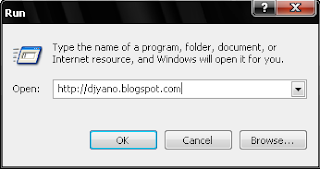
Go to start and click run and copy the command in red and paste it in and click ok.

Note: If you can't run it, try running it on CMD a.ka command prompt. To open it, go to start and click run and type cmd.
Here is a list of commands that you can run in XP:
Accessibility Controls - access.cpl
Add Hardware Wizard - hdwwiz.cpl
Add/Remove Programs - appwiz.cpl
Administrative Tools - control admintools
Automatic Updates - wuaucpl.cpl
Bluetooth Transfer Wizard - fsquirt
Calculator - calc
Certificate Manager - certmgr.msc
Character Map - charmap
Check Disk Utility - chkdsk
Clipboard Viewer - clipbrd
Command Prompt - cmd
Component Services - dcomcnfg
Computer Management - compmgmt.msc
Date and Time Properties - timedate.cpl
DDE Shares - ddeshare
Device Manager - devmgmt.msc
Direct X Control Panel (If Installed)* - directx.cpl
Direct X Troubleshooter - dxdiag
Disk Cleanup Utility - cleanmgr
Disk Defragment - dfrg.msc
Disk Management - diskmgmt.msc
Disk Partition Manager - diskpart
Display Properties - control desktop
Display Properties - desk.cpl
Display Properties (w/Appearance Tab Preselected) - control color
Dr. Watson System Troubleshooting Utility - drwtsn32
Driver Verifier Utility - verifier
Event Viewer - eventvwr.msc
File Signature Verification Tool - sigverif
Findfast - findfast.cpl
Folders Properties - control folders
Fonts - control fonts
Fonts Folder - fonts
Free Cell Card Game - freecell
Game Controllers - joy.cpl
Group Policy Editor (XP Prof) - gpedit.msc
Hearts Card Game - mshearts
Iexpress Wizard - iexpress
Indexing Service - ciadv.msc
Internet Properties - inetcpl.cpl
IP Configuration (Display Connection Configuration) - ipconfig /all
IP Configuration (Display DNS Cache Contents) - ipconfig /displaydns
IP Configuration (Delete DNS Cache Contents) - ipconfig /flushdns
IP Configuration (Release All Connections) - ipconfig /release
IP Configuration (Renew All Connections) - ipconfig /renew
IP Configuration (Refreshes DHCP & Re-Registers DNS) - ipconfig /registerdns
IP Configuration (Display DHCP Class ID) - ipconfig /showclassid
IP Configuration (Modifies DHCP Class ID) - ipconfig /setclassid
ava Control Panel (If Installed) - jpicpl32.cpl
Java Control Panel (If Installed) - javaws
Keyboard Properties - control keyboard
Local Security Settings - secpol.msc
Local Users and Groups - lusrmgr.msc
Logs You Out Of Windows - logoff
Mcft Chat - winchat
Minesweeper Game - winmine
Mouse Properties - control mouse
Mouse Properties - main.cpl
Network Connections - control netconnections
Network Connections - ncpa.cpl
Network Setup Wizard - netsetup.cpl
Notepad - notepad
Nview Desktop Manager (If Installed) - nvtuicpl.cpl
Object Packager - packager
ODBC Data Source Administrator - odbccp32.cpl
On Screen Keyboard - osk
Opens AC3 Filter (If Installed) - ac3filter.cpl
Password Properties - password.cpl
Performance Monitor - perfmon.msc
Performance Monitor - perfmon
Phone and Modem Options - telephon.cpl
Power Configuration - powercfg.cpl
Printers and Faxes - control printers
Printers Folder - printers
Private Character Editor - eudcedit
Quicktime (If Installed) - QuickTime.cpl
Regional Settings - intl.cpl
Registry Editor - regedit
Registry Editor - regedit32
Remote Desktop - mstsc
Removable Storage - ntmsmgr.msc
Removable Storage Operator Requests - ntmsoprq.msc
Resultant Set of Policy (XP Prof) - rsop.msc
Scanners and Cameras - sticpl.cpl
Scheduled Tasks - control schedtasks
Security Center - wscui.cpl
Services - services.msc
Shared Folders - fsmgmt.msc
Shuts Down Windows - shutdown
Sounds and Audio - mmsys.cpl
Spider Solitare Card Game - spider
SQL Client Configuration - cliconfg
System Configuration Editor - sysedit
System Configuration Utility - msconfig
System File Checker Utility (Scan Immediately) - sfc /scannow
System File Checker Utility (Scan Once At Next Boot) - sfc /scanonce
System File Checker Utility (Scan On Every Boot) - sfc /scanboot
System File Checker Utility (Return to Default Setting) - sfc /revert
System File Checker Utility (Purge File Cache) - sfc /purgecache
System File Checker Utility (Set Cache Size to size x) - sfc /cachesize=x
System Properties - sysdm.cpl
Task Manager - taskmgr
Telnet Client - telnet
User Account Management - nusrmgr.cpl
Utility Manager - utilman
Windows Firewall - firewall.cpl
Windows Magnifier - magnify
Windows Management Infrastructure - wmimgmt.msc
Windows System Security Tool - syskey
Windows Update Launches - wupdmgr
Windows XP Tour Wizard - tourstart
Wordpad - write
Pinball - pinball.exe
Related articles :
A - Z Windows XP CMD Command
An A-Z Index of the Windows XP command line:-
ADDUSERS Add or list users to/from a CSV file
ARP      Address Resolution Protocol
ASSOC    Change file extension associations
ASSOCIAT One step file association
AT       Schedule a command to run at a later time
ATTRIB   Change file attributes

BOOTCFG  Edit Windows boot settings
BROWSTAT Get domain, browser and PDC info

CACLS    Change file permissions
CALL     Call one batch program from another
CD       Change Directory - move to a specific Folder
CHANGE   Change Terminal Server Session properties
CHKDSK   Check Disk - check and repair disk problems
CHKNTFS  Check the NTFS file system
CHOICE   Accept keyboard input to a batch file
CIPHER   Encrypt or Decrypt files/folders
CleanMgr Automated cleanup of Temp files, recycle bin
CLEARMEM Clear memory leaks
CLIP     Copy STDIN to the Windows clipboard.
CLS      Clear the screen
CLUSTER  Windows Clustering
CMD      Start a new CMD shell
COLOR    Change colors of the CMD window
COMP     Compare the contents of two files or sets of files
COMPACT  Compress files or folders on an NTFS partition
COMPRESS Compress individual files on an NTFS partition
CON2PRT  Connect or disconnect a Printer
CONVERT  Convert a FAT drive to NTFS.
COPY     Copy one or more files to another location
CSCcmd   Client-side caching (Offline Files)
CSVDE    Import or Export Active Directory data

DATE     Display or set the date
Dcomcnfg DCOM Configuration Utility
DEFRAG   Defragment hard drive
DEL      Delete one or more files
DELPROF  Delete NT user profiles
DELTREE  Delete a folder and all subfolders
DevCon   Device Manager Command Line Utility
DIR      Display a list of files and folders
DIRUSE   Display disk usage
DISKCOMP Compare the contents of two floppy disks
DISKCOPY Copy the contents of one floppy disk to another
DNSSTAT  DNS Statistics
DOSKEY   Edit command line, recall commands, and create macros
DSADD    Add user (computer, group..) to active directory
DSQUERY  List items in active directory
DSMOD    Modify user (computer, group..) in active directory

ECHO     Display message on screen
ENDLOCAL End localisation of environment changes in a batch file
ERASE    Delete one or more files
EXIT     Quit the CMD shell
EXPAND   Uncompress files
EXTRACT  Uncompress CAB files

FC       Compare two files
FDISK    Disk Format and partition
FIND     Search for a text string in a file
FINDSTR  Search for strings in files
FOR /F   Loop command: against a set of files
FOR /F   Loop command: against the results of another command
FOR      Loop command: all options Files, Directory, List
FORFILES Batch process multiple files
FORMAT   Format a disk
FREEDISK Check free disk space (in bytes)
FSUTIL   File and Volume utilities
FTP      File Transfer Protocol
FTYPE    Display or modify file types used in file extension associations

GLOBAL   Display membership of global groups
GOTO     Direct a batch program to jump to a labelled line

HELP     Online Help
HFNETCHK Network Security Hotfix Checker

IF       Conditionally perform a command
IFMEMBER Is the current user in an NT Workgroup
IPCONFIG Configure IP

KILL     Remove a program from memory

LABEL    Edit a disk label
LOCAL    Display membership of local groups
LOGEVENT Write text to the NT event viewer.
LOGOFF   Log a user off
LOGTIME  Log the date and time in a file

MAPISEND Send email from the command line
MEM      Display memory usage
MD       Create new folders
MKLINK   Create a symbolic link (linkd)
MODE     Configure a system device
MORE     Display output, one screen at a time
MOUNTVOL Manage a volume mount point
MOVE     Move files from one folder to another
MOVEUSER Move a user from one domain to another
MSG      Send a message
MSIEXEC  Microsoft Windows Installer
MSINFO   Windows NT diagnostics
MSTSC    Terminal Server Connection (Remote Desktop Protocol)
MUNGE    Find and Replace text within file(s)
MV       Copy in-use files

NET      Manage network resources
NETDOM   Domain Manager
NETSH    Configure network protocols
NETSVC   Command-line Service Controller
NBTSTAT  Display networking statistics (NetBIOS over TCP/IP)
NETSTAT  Display networking statistics (TCP/IP)
NOW      Display the current Date and Time
NSLOOKUP Name server lookup
NTBACKUP Backup folders to tape
NTRIGHTS Edit user account rights

PATH     Display or set a search path for executable files
PATHPING Trace route plus network latency and packet loss
PAUSE    Suspend processing of a batch file and display a message
PERMS    Show permissions for a user
PERFMON  Performance Monitor
PING     Test a network connection
POPD     Restore the previous value of the current directory saved by PUSHD
PORTQRY  Display the status of ports and services
PRINT    Print a text file
PRNCNFG  Display, configure or rename a printer
PRNMNGR  Add, delete, list printers set the default printer
PROMPT   Change the command prompt
PsExec     Execute process remotely
PsFile     Show files opened remotely
PsGetSid   Display the SID of a computer or a user
PsInfo     List information about a system
PsKill     Kill processes by name or process ID
PsList     List detailed information about processes
PsLoggedOn Who's logged on (locally or via resource sharing)
PsLogList  Event log records
PsPasswd   Change account password
PsService  View and control services
PsShutdown Shutdown or reboot a computer
PsSuspend  Suspend processes
PUSHD    Save and then change the current directory

QGREP    Search file(s) for lines that match a given pattern.

RASDIAL  Manage RAS connections
RASPHONE Manage RAS connections
RECOVER  Recover a damaged file from a defective disk.
REG      Registry: Read, Set, Export, Delete keys and values
REGEDIT  Import or export registry settings
REGSVR32 Register or unregister a DLL
REGINI   Change Registry Permissions
REM      Record comments (remarks) in a batch file
REN      Rename a file or files.
REPLACE  Replace or update one file with another
RD       Delete folder(s)
RDISK    Create a Recovery Disk
RMTSHARE Share a folder or a printer
ROBOCOPY Robust File and Folder Copy
ROUTE    Manipulate network routing tables
RUNAS    Execute a program under a different user account
RUNDLL32 Run a DLL command (add/remove print connections)

SC       Service Control
SCHTASKS Create or Edit Scheduled Tasks
SCLIST   Display NT Services
ScriptIt Control GUI applications
SET      Display, set, or remove environment variables
SETLOCAL Control the visibility of environment variables
SETX     Set environment variables permanently
SHARE    List or edit a file share or print share
SHIFT    Shift the position of replaceable parameters in a batch file
SHORTCUT Create a windows shortcut (.LNK file)
SHOWGRPS List the NT Workgroups a user has joined
SHOWMBRS List the Users who are members of a Workgroup
SHUTDOWN Shutdown the computer
SLEEP    Wait for x seconds
SOON     Schedule a command to run in the near future
SORT     Sort input
START    Start a separate window to run a specified program or command
SU       Switch User
SUBINACL Edit file and folder Permissions, Ownership and Domain
SUBST    Associate a path with a drive letter
SYSTEMINFO List system configuration

TASKLIST List running applications and services
TIME     Display or set the system time
TIMEOUT  Delay processing of a batch file
TITLE    Set the window title for a CMD.EXE session
TOUCH    Change file timestamps
TRACERT  Trace route to a remote host
TREE     Graphical display of folder structure
TYPE     Display the contents of a text file

USRSTAT  List domain usernames and last login

VER      Display version information
VERIFY   Verify that files have been saved
VOL      Display a disk label

WHERE    Locate and display files in a directory tree
WHOAMI   Output the current UserName and domain
WINDIFF  Compare the contents of two files or sets of files
WINMSD   Windows system diagnostics
WINMSDP  Windows system diagnostics II
WMIC     WMI Commands

XCACLS   Change file permissions
XCOPY    Copy files and folders

Microsoft Help pages: Windows XP - 2003 Server
Related articles :
4.25.2008
How To Rename The Recycle Bin In Windows XP
Not many of us know on how to rename the "Recycle Bin" in Windows Xp. Lucky for you, I've found a way to rename it after surfing and googling on the Net. All you have to so is to edit the registry value.

Here's how to do it:-
- Go to Start >> Run
- Type regedit.exe and hit enter and it will open the Registry Editor.
- Navigate to HKEY_CURRENT_USER\Software\Microsoft\Windows\ ShellNoRoam\MUICache
- You’ll find probably something like this: @C:\WINDOWS\system32\SHELL32.dll,-8964.

- Change it’s value to what you want the Recycle Bin’s name to be. Like "Recycle Bin" to "BIN".

Note: Modifying the Registry may harm your system if you're changing the wrong settingss. Make sure you have a backup. Do it at your own risk.
Source: tweak-everything
Related articles :
4.06.2008
9 Useful Windows XP CMD Commands
Typing DOS commands on the Windows Command Line prompt is a most efficient and faster way of doing things in Windows XP. Here's a run-down of the most useful DOS commands available in Windows XP. Some of these DOS commands even do not have an visual alternative.DOS Command-line tools must be run at the prompt of the Cmd.exe command interpreter. To open Command Prompt, click Start, click Run, type cmd, and then click OK.
To view help at the command-line, at the command prompt, type the following: help
1. Windows IP configuration
Useful for troubleshooting your internet connection. Displays the current IP address of your computer and the DNS server address. If you call your ISP for reporting a bad internet connection, he will probably ask you to run ipconfig.
The command is: ipconfig
2. Free BeyondCompare in XP
FC is an advanced DOS Command that compares two files and displays the differences between them. Though the file comparison results are not as interactive as BeyondCompare or Altova DiffDog, fc is still very useful. You can even set fc to resynchronize the files after finding a mismatch.
The command is: fc
3. Open Text Files Sans Notepad
Similar to Unix cat command, Type is my favorite DOS command for displaying the contents of a text files without modifying them. When used in combination with more switch, type splits the contents of lengthy text files into multiple pages. Avoid using the type command with binary files or you'll hear alien PC beeps and see some greek characters on your PC.
The command is: type
4. Say Hello To Another Computer
Ping network command followed by the web-address or IP address tells you about the health of the connection and whether the other party is responding to your handshake request. Ping tool can also be used to convert the web address to a physical IP address.
The command is: ping
5. Visual Directory Structure
You often need to take prints of your physical directory structure but XP has no simple "visual" commands for printing directory contents. Here, try the Tree DOS command and redirect the output to a text file.
The command is: tree
tree > mydirectory.txt
print mydirectory.txt
6. Make Hidden Files Visible
Attrib lets you change attributes of System files and even hidden files. This is great for troubleshooting Windows XP. Say your XP doesn't boot ever since you edited that startup boot.ini file (Hidden), use attrib to remove the Hidden attibute and edit the file using EDIT dos command.
The command is: attrib
7. Which Program Will Open That .xyz File
The assoc DOS command can be used to either isplay or even modify the file name extension associations.
The command is: assoc
8. More Flexible Than copy-paste
Say you got a lot of XLS and DOC files in you MyDocuments folder and want to move only those XLS files that have their name ending with 2006. In XP Explorer, you have to manually select each file and then cut-paste to another folder. However, the DOS move command make things much simpler. Just type the following at the command prompt:
move *2006.xls c:\2006Reports\
The command is: move
9. Advanced File Search With Filter
Find is the most powerful DOS command and even more useful than the Windows Desktop Search tool or the Windows Find Wizard. The find command searches for a specific string of text in a file or files. After searching the specified file or files, find displays any lines of text that contain the specified string.
To search your hard disk to find and display the file names on drive C: that contain the string "Google" use the pipe (|) to direct the results of a dir command to find as follows: dir c:\ /s /b | find "Google"
The command is: find
Quick tip - Drag to avoid typing: When your command acts on a file or folder, you must type the path to that folder after the command. You can save typing time by dragging the file or folder from Windows Explorer into the command window.
Related resources on Microsoft Website:
List of DOS Commands with Examples | Command Line Redirection Methods
Related articles :
4.05.2008
11 Tips To Speed Up Windows XP
Some of the working tweaks you can do to your Windows XP can really be a blessing to your system’s speed. So I thought about sharing with you the safe tweaks on how to have a faster Windows XP. As a disclaimer do the following tweaks at your own risk, however they were all tested and are in use by most of our team members and friends. Cacheman Improves the performance of your computer by optimizing the disk cache, memory and a number of other settings. There are lots of ways to do this but by far the easiest is to run TCP/IP Optimizer. If you have a lot of folders and subdirectories on your computer, when you access a directory XP wastes a lot of time updating the time stamp showing the last access time for that directory and for ALL sub directories. To stop XP doing this you need to edit the registry. If you are uncomfortable doing this then please do not attempt. This is one of my favourite tweaks as it makes a huge difference to how fast your machine will ‘feel’. What this tweak does is remove the slight delay between clicking on a menu and XP displaying the menu. 1. Go to Start then Run This tweak reduces the time XP waits before automatically closing any running programs when you give it the command to shutdown. 1. Go to Start then select Run If you have more than 256MB of RAM this tweak will considerably improve your performance. It basically makes sure that your PC uses every last drop of memory (faster than swap file) before it starts using the swap file. 1. Go to Start then Run XP enables DMA for Hard-Drives and CD-Roms by default on most ATA or ATAPI (IDE) devices. However, sometimes computers switch to PIO mode which is slower for data transfer - a typical reason is because of a virus. To ensure that your machine is using DMA: 1. Open ‘Device Manager’
1. DISABLE INDEXING SERVICES
Indexing Services is a small little program that uses large amounts of RAM and can often make a computer endlessly loud and noisy. This system process indexes and updates lists of all the files that are on your computer. It does this so that when you do a search for something on your computer, it will search faster by scanning the index lists. If you don’t search your computer often, or even if you do search often, this system service is completely unnecessary. To disable do the following:
1. Go to Start
2. Click Settings
3. Click Control Panel
4. Double-click Add/Remove Programs
5. Click the Add/Remove Window Components
6. Uncheck the Indexing services
7. Click Next
2. OPTIMISE DISPLAY SETTINGS
Windows XP can look sexy but displaying all the visual items can waste system resources. To optimise:
1.Go to Start
2. Click Settings
3. Click Control Panel
4. Click System
5. Click Advanced tab
6. In the Performance tab click Settings
7. Leave only the following ticked:
- Show shadows under menus
- Show shadows under mouse pointer
- Show translucent selection rectangle
- Use drop shadows for icons labels on the desktop
- Use visual styles on windows and buttons
3. SPEEDUP FOLDER BROWSING
You may have noticed that everytime you open my computer to browse folders that there is a slight delay. This is because Windows XP automatically searches for network files and printers everytime you open Windows Explorer. To fix this and to increase browsing significantly:
1. Open My Computer
2. Click on Tools menu
3. Click on Folder Options
4. Click on the View tab.
5. Uncheck the Automatically search for network folders and printers check box
6. Click Apply
7. Click Ok
8. Reboot your computer4. IMPROVE MEMORY USAGE
NOTE: This program is shareware and some features require activation.
Once Installed:
2.Run all the wizards by selecting Next or Finished until you are back to the main menu. Use the defaults unless you know exactly what you are doing.
3.Exit and Save Cacheman
4.Restart Windows5. OPTIMISE YOUR INTERNET CONNECTION
2. Click the General Settings tab and select your Connection Speed (Kbps)
3. Click Network Adapter and choose the interface you use to connect to the Internet
4. Check Optimal Settings then Apply
5. Reboot
6. OPTIMISE YOUR PAGEFILE
If you give your pagefile a fixed size it saves the operating system from needing to resize the page file.
1. Right click on My Computer and select Properties
2. Select the Advanced tab
3. Under Performance choose the Settings button
4. Select the Advanced tab again and under Virtual Memory select Change
5. Highlight the drive containing your page file and make the initial Size of the file the same as the Maximum Size of the file.
Windows XP sizes the page file to about 1.5X the amount of actual physical memory by default. While this is good for systems with smaller amounts of memory (under 512MB) it is unlikely that a typical XP desktop system will ever need 1.5 X 512MB or more of virtual memory. If you have less than 512MB of memory, leave the page file at its default size. If you have 512MB or more, change the ratio to 1:1 page file size to physical memory size. 7. SPEEDUP FOLDER ACCESS - DISABLE LAST ACCESS UPDATE
2. Click through the file system until you get to “HKEY_LOCAL_MACHINE\ System\CurrentControlSet\Control\FileSystem”
3. Right-click in a blank area of the window on the right and select ‘DWORD Value’
4. Create a new DWORD Value called ‘NtfsDisableLastAccessUpdate’
5. Then Right click on the new value and select ‘Modify’
6. Change the Value Data to ‘1′
7. Click ‘OK’8. MAKE YOUR MENUS LOAD FASTER
2. Type ‘Regedit’ then click ‘Ok’
3. Find “HKEY_CURRENT_USER\Control Panel\Desktop\”
4. Select “MenuShowDelay”
5. Right click and select “Modify’
6. Reduce the number to around “100″
7. This is the delay time before a menu is opened. You can set it to “0″ but it can make windows really hard to use as menus will open if you just look at them - well move your mouse over them anyway. I tend to go for anywhere between 50-150 depending on my mood9. IMPROVE XP SHUTDOWN SPEED
2. Type ‘Regedit’ and click ok
3. Find ‘HKEY_CURRENT_USER\ Control Panel\Desktop\’
4. Select ‘WaitToKillAppTimeout’
5. Right click and select ‘Modify’
6. Change the value to ‘1000′
7. Click ‘OK’
8. Now select ‘HungAppTimeout’
9. Right click and select ‘Modify’
10. Change the value to ‘1000′
11. Click ‘OK’
12. Now find ‘HKEY_USERS\ .DEFAULT\Control Panel\Desktop’
13. Select ‘WaitToKillAppTimeout’
14. Right click and select ‘Modify’
15. Change the value to ‘1000′
16. Click ‘OK’
17. Now find ‘HKEY_LOCAL_MACHINE\ System\CurrentControlSet\Control\’
18. Select ‘WaitToKillServiceTimeout’
19. Right click and select ‘Modify’
20. Change the value to ‘1000′
21. Click ‘OK’10. IMPROVE SWAPFILE PERFORMANCE
2. Type “msconfig.exe” then ok
3. Click on the System.ini tab
4. Expand the 386enh tab by clicking on the plus sign
5. Click on new then in the blank box type"ConservativeSwapfileUsage=1"
6. Click OK
7. Restart PC
2. Double-click ‘IDE ATA/ATAPI Controllers’
3. Right-click ‘Primary Channel’ and select ‘Properties’ and then ‘Advanced Settings’
4. In the ‘Current Transfer Mode’ drop-down box, select ‘DMA if Available’ if the current setting is ‘PIO Only’.
Related articles :
3.28.2008
Customizing Your Own Window XP Interface to MAC OS X
So, you want to customize your ugly Windows XP interface? It's really not that difficult to do, and with a little luck, you'll be able change Windows XP interface. First, here's a list of the programs you'll need:
You will need:
StyleXP (skins the Graphical User Interface of your operating system)
ObjectBar (the white Finder bar on the top of Macs; has File, Edit, View, etc. on it.)
ObjectDock (The dock on The bottom of a Mac that contains icons and shortcuts to programs)
Trillian (chat program that can be skinned to resemble iChat)
YzToolbar (skins the toolbar icons in your Windows windows)
YzShadow (puts a lovely drop shadow under your windows á la Mac OS)
Rainlendar (popular skinable desktop calendar)
Rainmeter (skinnable desktop system statistics)
Samurize (like Konfabulator for the Mac; can display just about anything, such as clocks, uptime, and the weather)
iTunes for Windows (self-explanatory)
Icons (The pretty little pictures on your desktop that point you somewhere. There are millions out there, but try the link provided for over a 1,000 lifted from Mac OS X 10.3 aka Panther)
You can Easily get these programs just google :)
That's pretty much what you'll want for starters. You don't need all of these, and in fact, you really only need a few to get a reasonably good looking OS X facsimile, but if you're gonna do this you might as well do it right.
I use StyleXP for my visual style, so that's what I'll detail here. WindowBlinds isn't that different, but if you prefer it, be my guest. The first thing you'll need to do is download a skin. I recommend Kol's website, StudioTwentyEight for some excellent skins, but feel free to look around for any others that might interest you. Download your ZIP, and extract it to C:\WINDOWS\Resources\Themes.
1) Open up StyleXP and load up that baby. Your windows should now look like the skin you downloaded.
2) Time to find a good ObjectBar skin. I'd suggest crni's website for some excellent themes. Download the one you like best and extract it to your ObjectBar folder. Open the new folder in there (named something like the theme you downloaded) and double-click the .OBTHEME icon
3) Next up is the dock. Open up whichever version you settled on downloading. This is pretty easy to set up. Basically all you need to do is drag shortcuts or executables to the dock and ta da, you have a shortcut. To change it's icon, right-click and select "change icon" or some variation. To get new icons to select, make sure you put them in the icons subfolder (for YzDock) or the main dock folder (for ObjectDock).
4) For those that don't know, Trillian is a nifty chat program that sticks AIM, MSN, ICQ, and IRC into one program. If you don't use it, you should if for no other reason that it can look a lot like iChat. You may or may not need the Pro version to get the skin to work. I've heard mixed reports, but if it doesn't work right, I'd say you need the Pro version. An excellent choice for skins are iChat skins. Extract it to your Trillian skin directory, open up Trillian's preferences, go to skins, and select the new skin you want to use. You can follow the readme for some more precise directions to get it looking perfect.
5) YzToolbar and YzShadow are pretty self-explanatory. Just install 'em and run 'em. You can find good YzToolbar skins on the net: I'd recommend Aqua-Soft or AquaXP.
6) Rainlendar and Rainmeter are also pretty easy to install and set-up। Just run the installer, and find a good skin. Again, there's many to choose from. I'd suggest searching the forums at the aforementioned Aqua-Soft and AquaXP.
7) Samurize is a bit complicated, so if you're going to try and use it, be forewarned that it can be a very big hassle, if it works at all. I'm not even going to try and explain it in this brief overview, but if you are serious about it, check out the Samurize forums at Aqua-Soft and AquaXP.
If you listen to music on your computer, no Aqua-fication can be complete without the authentic iTunes for Windows. Apple provides plenty of documentation on how to install and use it, so I'll leave that part to them. If you want to make it look more like iTunes for Macintosh, check out localhost's multi-plugin.And the final result will look like this.
Related articles :
3.25.2008
XP Tips: Stop UnNeeded Startup Services
XP Tips: Stop UnNeeded Startup Services
Along with the core operating system and programs that Windows XP runs when it starts, there is also a host of services involved. Many of these services are necessary for Windows XP to operate correctly. However, many of them are for features in Windows XP that you may not use at all. You can peruse the services and disable any service that you do not want to run. The fewer services that run, the more quickly Windows XP will boot.
TRICK ONE :-
Go to Start > Run > “msconfig” (without quotes) and Hit Enter
The Services tab shows you the services that start when the computer boots. You can stop a service from starting by simply clearing the check box next to the service and clicking OK.For example you can disable winamp agent during startup, YM, MSN, etc...
TRICK TWO :-
Go to Start > Run > “services.msc” and Hit Enter or simply Open Control Panel > Administrative Tools > Services.
::Some Common Services That You Might Want To Disable::
Automatic Updates: This service enables Windows XP to check the Web automatically for updates. If you don't want to use Automatic Updates, you can disable the service.
DHCP Client: If you are not on a network, you do not need this service. If you are on a small workgroup, you can still increase boot time by configuring manual IP.
DNS Client: If you are not on a network, you do not need this service.
Error Reporting and Event Log: You don't have to use these services but they can be very helpful, so I would leave them configured as automatic.
Fax: If you don't use your computer for fax services, you can disable this one.
Indexing Service: Your computer keeps an index of all the files. But if you rarely search for files, the service is just a resource hog. You can stop it .
Windows Firewall/Internet Connection Sharing: If you do not use these features, plz disable.
Messenger: This service sends alert messages on a local area network (it is not the same as Windows Messenger). If you are not on a network, you can disable this service.
Print Spooler: If you do not do any printing from the computer, you can disable this service. If you print, make sure you leave it as automatic.
Remote Registry: This service allows remote users to modify the Registry on your computer. If you are not on a network, you can disable this service.
Wireless Zero Configuration: If do not use wireless networking devices, you can disable.
This article was taken from http://tweak-everything।blogspot।com/
Related articles :
3.23.2008
20 things you didn't know about Windows XP
1. It boasts how long it can stay up. Whereas previous versions of Windows were coy about how long they went between boots, XP is positively proud of its stamina. Go to the Command Prompt in the Accessories menu from the All Programs start button option, and then type 'systeminfo'. The computer will produce a lot of useful info, including the uptime. If you want to keep these, type 'systeminfo > info.txt'. This creates a file called info.txt you can look at later with Notepad. (Professional Edition only).
2. You can delete files immediately, without having them move to the Recycle Bin first. Go to the Start menu, select Run... and type 'gpedit.msc'; then select User Configuration, Administrative Templates, Windows Components, Windows Explorer and find the Do not move deleted files to the Recycle Bin setting. Set it. Poking around in gpedit will reveal a great many interface and system options, but take care -- some may stop your computer behaving as you wish. (Professional Edition only).
3. You can lock your XP workstation with two clicks of the mouse. Create a new shortcut on your desktop using a right mouse click, and enter 'rundll32.exe user32.dll,LockWorkStation' in the location field. Give the shortcut a name you like. That's it -- just double click on it and your computer will be locked. And if that's not easy enough, Windows key + L will do the same.
4. XP hides some system software you might want to remove, such as Windows Messenger, but you can tickle it and make it disgorge everything. Using Notepad or Edit, edit the text file /windows/inf/sysoc.inf, search for the word 'hide' and remove it. You can then go to the Add or Remove Programs in the Control Panel, select Add/Remove Windows Components and there will be your prey, exposed and vulnerable.
5. For those skilled in the art of DOS batch files, XP has a number of interesting new commands. These include 'eventcreate' and 'eventtriggers' for creating and watching system events, 'typeperf' for monitoring performance of various subsystems, and 'schtasks' for handling scheduled tasks. As usual, typing the command name followed by /? will give a list of options -- they're all far too baroque to go into here.
6. XP has IP version 6 support -- the next generation of IP. Unfortunately this is more than your ISP has, so you can only experiment with this on your LAN. Type 'ipv6 install' into Run... (it's OK, it won't ruin your existing network setup) and then 'ipv6 /?' at the command line to find out more. If you don't know what IPv6 is, don't worry and don't bother.
7. You can at last get rid of tasks on the computer from the command line by using 'taskkill /pid' and the task number, or just 'tskill' and the process number. Find that out by typing 'tasklist', which will also tell you a lot about what's going on in your system.
8. XP will treat Zip files like folders, which is nice if you've got a fast machine. On slower machines, you can make XP leave zip files well alone by typing 'regsvr32 /u zipfldr.dll' at the command line. If you change your mind later, you can put things back as they were by typing 'regsvr32 zipfldr.dll'.
9. XP has ClearType -- Microsoft's anti-aliasing font display technology -- but doesn't have it enabled by default. It's well worth trying, especially if you were there for DOS and all those years of staring at a screen have given you the eyes of an astigmatic bat. To enable ClearType, right click on the desktop, select Properties, Appearance, Effects, select ClearType from the second drop-down menu and enable the selection. Expect best results on laptop displays. If you want to use ClearType on the Welcome login screen as well, set the registry entry HKEY_USERS/.DEFAULT/Control Panel/Desktop/FontSmoothingType to 2.
10. You can use Remote Assistance to help a friend who's using network address translation (NAT) on a home network, but not automatically. Get your pal to email you a Remote Assistance invitation and edit the file. Under the RCTICKET attribute will be a NAT IP address, like 192.168.1.10. Replace this with your chum's real IP address -- they can find this out by going to www.whatismyip.com -- and get them to make sure that they've got port 3389 open on their firewall and forwarded to the errant computer.
11. You can run a program as a different user without logging out and back in again. Right click the icon, select Run As... and enter the user name and password you want to use. This only applies for that run. The trick is particularly useful if you need to have administrative permissions to install a program, which many require. Note that you can have some fun by running programs multiple times on the same system as different users, but this can have unforeseen effects.
12. Windows XP can be very insistent about you checking for auto updates, registering a Passport, using Windows Messenger and so on. After a while, the nagging goes away, but if you feel you might slip the bonds of sanity before that point, run Regedit, go to HKEY_CURRENT_USER/Software/Microsoft/Windows/Current Version/Explorer/Advanced and create a DWORD value called EnableBalloonTips with a value of 0.
13. You can start up without needing to enter a user name or password. Select Run... from the start menu and type 'control userpasswords2', which will open the user accounts application. On the Users tab, clear the box for Users Must Enter A User Name And Password To Use This Computer, and click on OK. An Automatically Log On dialog box will appear; enter the user name and password for the account you want to use.
14. Internet Explorer 6 will automatically delete temporary files, but only if you tell it to. Start the browser, select Tools / Internet Options... and Advanced, go down to the Security area and check the box to Empty Temporary Internet Files folder when browser is closed.
15. XP comes with a free Network Activity Light, just in case you can't see the LEDs twinkle on your network card. Right click on My Network Places on the desktop, then select Properties. Right click on the description for your LAN or dial-up connection, select Properties, then check the Show icon in notification area when connected box. You'll now see a tiny network icon on the right of your task bar that glimmers nicely during network traffic.
16. The Start Menu can be leisurely when it decides to appear, but you can speed things along by changing the registry entry HKEY_CURRENT_USER/Control Panel/Desktop/MenuShowDelay from the default 400 to something a little snappier. Like 0.
17. You can rename loads of files at once in Windows Explorer. Highlight a set of files in a window, then right click on one and rename it. All the other files will be renamed to that name, with individual numbers in brackets to distinguish them. Also, in a folder you can arrange icons in alphabetised groups by View, Arrange Icon By... Show In Groups.
18. Windows Media Player will display the cover art for albums as it plays the tracks -- if it found the picture on the Internet when you copied the tracks from the CD. If it didn't, or if you have lots of pre-WMP music files, you can put your own copy of the cover art in the same directory as the tracks. Just call it folder.jpg and Windows Media Player will pick it up and display it.
19. Windows key + Break brings up the System Properties dialogue box; Windows key + D brings up the desktop; Windows key + Tab moves through the taskbar buttons.
20. The next release of Windows XP, codenamed Longhorn, is due out late next year or early 2003 and won't be much to write home about. The next big release is codenamed Blackcomb and will be out in 2003/2004.
Related articles :
Subscribe to:
Posts (Atom)


